1. SP11 (Service Pack 11) Things to Know
1. What are the top new features to know?
- New Blackboard navigation to all Bb functions (courses, calendar, settings, notifications, etc.) A video can be seen about the “new” Blackboard here.
- Integrated Calendar – Due dates from your course assignments/grade center will appear on the course calendar and is integrated into a total Bb calendar for the user. Students can use filtering options to selectively view particular courses and can click on an item to view the details and in some cases go directly to that item/assignment. More about the calendar here.
- A nice new option in Discussion Boards allows for instructors to require a post (new thread) prior to seeing other student posts. You will also notice that viewing of posts sand replies are greatly enhanced! More about discussions here.
- Inline Grading allows instructors to easily add comments to give feedback to students during the assignment submittal grading process. More about Inline Grading here.
- Rubrics are now integrated into the grading process! More about Rubrics here.
- The new Retention Center enables you to easily see which students are at risk. More about the Retention Center here.
- New Profile and Notifications will allow students and instructors to upload an image that can be seen in all areas of their courses. Users will also be able to set a text message or text-to-voice notification if they wish.
The Top features in SP11 can be found here with a lot more detail!
2. Why does spell-check not seem to work in Firefox?
Prior to SP11, you may have noticed that Firefox, a browser that does a spell-check of anything in a form/text box automatically, has appeared to stop working in Blackboard.
There have been many positive improvements to the new textbox editor in Blackboard SP11. However, the new editor does not currently allow Firefox to “see” the textbox with toolbars. You will need to click the spell-check icon to invoke the spellcheck in Firefox, just as you need to do in Internet Explorer or Safari.
3. Grade Center Order for Students
In SP5 of Bb (SP5), students saw the order of your gradecenter items in the order that you placed them in your column organization. In SP11, the order that the students will see the gradecenter is:
- Divided into two sections, Graded and Upcoming
- Within Graded, the order is most recent to least recent
- Within Upcoming, the order is by due date. If the due date is the same, the order is alphabetical
What does this mean to you? Features that use the Due dates in Bb SP11 have greatly improved. Due Dates for assessments are now integrated into the course calendar and notifications. Time to use the Due Dates!
4. Possible Error Email or Message upon Export/Import
Due to new features in SP11, a course that is exported and imported prior to usage in SP11 may give an error message that the export or import did not complete, but at the end of the email you’ll notice that it may also say “complete successful”. Give your course a good look through. In all likelihood the import was successful. Unfortunately, there is nothing that can be done about this from our end.
5. Notifications
Both students and faculty can receive notifications by email, text message and voice message.
There are actually TWO features:
- Text messages (text message of the subject is sent - e.g. Announcement subject)
- Text-to-Voice (text is spoken in a digital voice and the mobile number is called).
It generally takes between 15-20 minutes to receive either the text or voice message of a posted announcement. Although immediate response is not necessary for this type of notification, we really do not know how bogged down the system might get.
To turn on the function you need to:
- Select the downarrow by your name
- Select Settings

- Select Personal Information, "Edit Personal Information"
- Scroll down to enter your "Mobile Number", click "Submit"
- Then, Select "Set Privacy Options"
- Assure that "Additional Contact Information" is UNchecked
- Select "Edit Notification Settings"
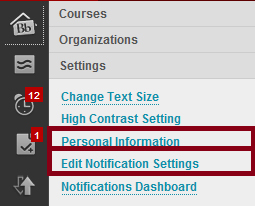
- Select either a specific course under, "Edit Individual course Settings", or "Courses I am taking" under Bulk Edit Notification Settings, editing your Individual Course Setting is suggested.
- Select the course
- Check the method of notification you would like to receive (email, SMS (text message), text-to-voice (phone call)

CAUTION – checking to receive all notifications could be troublesome. It is suggested to select announcements for your notification method and perhaps when a particular item is due or made available.
6. Embedded media content does not display in Blackboard
Depending on your browser and browser version, you may find that you are not able to display embedded media.
Your browser may be preventing the display of this “insecure” content from displaying within the secure Blackboard page. It is not always obvious that part of your content is blocked – there may be a blank area without a message that the media was blocked.
Internet Explorer (IE) will generally display a pop-up message at the bottom of the page. You should click to “Show all content”

Firefox (v23+) will not display a message, but in the upper right, to the left of the address bar you will see the shield icon, click it. Select the dropdown arrow and select “Disable Protection on This Page”. You will be taken back to the course home page. Navigate back to the same page and you should now be able to see the embedded media.

2. Login / Access / Roster Questions
1. What do I need to do to access Blackboard?
As a Santa Ana College faculty member, you have access to Blackboard with your WebAdvisor id/password.
2. I cannot login to Blackboard
If you cannot login to Bb with your WebAdvisor ID, follow these instructions. If you still have difficulty, please contact the ITS Help Desk at: (714) 564-4357
3. I cannot see my courseshells
Courseshells are automatically generated in Bb at least one month prior to the up-coming semester start.
Courseshells or classes that are created for Bb are based on division input. Thus, until the system is updated with the faculty member as the instructor of record, faculty are not assigned the courseshell in Bb.
You need to log into WebAdvisor to see if your course has been assigned. If the course has NOT yet been assigned, please contact your division office. If the course has been assigned, please contact the Distance Education Office.
4. What do I do if I want to begin preparing for an upcoming course before it is available?
Contact the Distance Education Office and we’ll be happy to manually create a shell for you to use!
5. When are students added to my course site?
Student registration on Datatel is input into Bb on a daily basis approximately two weeks before classes begin.
For the first two weeks of classes, a program is run twice a day enrolling students in Bb courses from current Datatel information. It is run at approximately 10am and 4:30pm.
6. Why does my Blackboard roster not match my WebAdvisor Roster?
Your true roster is your WebAdvisor roster. If the student is not on your WebAdvisor roster, they are not enrolled in your course.
There are several reasons your roster may not match:
- Although students are continually added into your Bb course, student drops are run only one time, on the Friday before classes begin. Thus, any student initiated drops Friday – Sunday before classes begin are not dropped from your Bb roster. You will need to remove these students from your Bb roster.
- If you added a student and it appears on WebAdvisor, the student needs to wait for the program to enroll them in the course on Bb. If it has been over 24-hours, and the student is on WebAdvisor, please have your student contact the Distance Education office.
- You dropped a student on WebAdvisor and did not notate this on Bb. (Please see “How do I remove a student from my Bb course”)
7. Why can’t students see my course?
- The student may not be enrolled – verify the student is on your current WebAdvisor Roster
- You may have forgotten to make your course available
a. On the Control Panel select "Customization".
b. Click "Properties"
c. Select "Set Availability" and "Yes" to make your course available.
e. Click "Submit" to save your changes
8. Can I make a course unavailable to students? (Removing students is no longer allowed)
1. Making your course "Unavailable" to the student
- Under Control Panel, select "Users and Groups"
- Select Users
- Select chevrons for the student account
- Click on "Change User's Availability in Course"
- Select "No" for "Available for this course only"
- Submit
- Students that are "Unavailable" will not receive email sent to the entire class.

2. Hiding the dropped student row in Grade Center
- In the Grade Center, select Manage
- Click Row Visibility
- Click the box for the dropped student
- Click to “Hide Rows”
- Submit
- Student work is preserved

DE Courses:
- All student work must be saved, even for dropped students.
- You must have stated criteria for dropping a student and the criteria must be one of academic engagement.
- A student cannot remain enrolled in the course if there is no evidence of academic engagement and regular and substantive interaction.
9. Why are some students not receiving my emails sent from Blackboard?
The student needs to update their email on Bb.
Bb receives the student email from the student information system upon the student’s first registration at the college. If they have changed their primary email, let the student know that they need to update their email on Bb.
To update their email (or yours!) : Select Your Name (in the upper right), select Settings, Personal Information, Edit Personal Information, update your email, select Submit.
10. How do I limit the number of courses that I see listed?
It’s easy! To alter your view of your courses on Bb, from the Bb home page, after login, click on the setting wheel for the “My Courses” module. Then UNcheck the courses that you do not wish to see on your homepage.
If you ever need to look at that course, again, you can go back to your settings and check to have them appear on the Bb home page again.

11. How do I get access to my Bb course for my TA?
We require an email from your division dean for approval to put a non-faculty member in your course.
Please email your dean with your request and forward their approval to the Distance Education office, providing the TA’s name, email, and the course and section# you would like for them to have access.
12. How can I see my course as a student?
There are two ways to do this:
- Click on the Edit button in the upper right of your course. Clicking on the Edit ON, will turn it OFF, or student view – this will allow you to see which items are truly available for students to view.
- Logon as a Student – Create a student account for your course – this is the ideal way to know how your gradecenter and assessments are appearing for students in your course.
3. Content Questions
1. How can I get started with Blackboard?
There are a few ways to get started:
- Logon to Blackboard, and go through the handouts and videos on our “Faculty Information Site” course. It is a work in progress, but there is quite a lot of information there.
- If you prefer a face-to-face learning format, our designated times to update faculty on Blackboard, with basic and specific areas, such as gradecenter, assessments, interactive tools and groups are during Flexweek, the week before classes begin, in the fall and spring semesters.
- Distance Education also has a limited number of linda.com accounts for which they have a nice Blackboard learning module. The teaching format it online with video instruction.
2. How do I update my picture in Blackboard?
After logging in to Blackboard:
- Click on your name
- Click on “Settings”
- Click on “Personal Information”
- Select “Personalize My Settings”
- Under #1, Avatar Image, select “Use Custom Avatar Image” and “Browse My Computer” and find and attach your image.
- Click “Submit”
3. What type of content is suggested for my course site?
As a starting point, it is suggested that faculty post their syllabus/course outline, handouts and their grades on Blackboard. Announcements are also an excellent communication tool to use with your students, as they can be emailed as well as posted on your course site.
4. How do I add content to my course site?
- Select the appropriate menu item for your content area.
- Keep in mind that you can rename, add or delete a menu item
- Keep in mind that you can rename, add or delete a menu item
- There are several choices from which to select when adding content:

- Select Build Content to add any documents, image files, external webpage links (URL), links with your Blackboard course (Course Link), or You Tube video link. You can also create your work within Blackboard using "New Page" folders, blank pages, and modules.

5. Students cannot view material in my course
- Check to make sure you have made the content item available to students
- If it is available, it is possible that when the student clicks on the content item link that they do not have the software required to see/view it. e.g. Quicktime, Adobe Flash, etc. Let students know what software is required for them to view your specific content. (Also, see “Students cannot open files I uploaded on Bb”.)
6. Students cannot open files I uploaded on Blackboard
Students must first have the proper plug-in’s installed. On the Bb home screen, after login, instruct your student to test their browser using the “Browser Test” module.

7. Can I reuse my course setup and materials from this semester to next semester?
Yes! Faculty can either:
- Use Course Copy:
- From your “old” or existing course
- Under the Control Panel, select “Packages and Utilities”
- Select Course Copy
- Browse for your current semester’s courseshell, or the courseshell that you would like to copy TO
- Either click to Select All course materials to copy, or check the areas to copy
- Skip #3 for now (we will begin monitoring course size files in the near future)
- Click “Submit”
- Use Export/Import:
- This method is described in the linked document. You can use this method if course copy does not work. We are finding that course copy does seem to copy the entire course, including publisher content without problems. However, if there is a problem, please use Export/Import.
- Exporting and Importing your course also provides a good backup of your course to your computer and is a suggested method to use when we begin use of archiving classes.

8. I have large PowerPoint files/Video/Image files
We will be implementing a storage maximum/course shortly! You should contact the Distance Education office and we will get you in touch with our Educational Multimedia Services folks so that you can store these large files on our media server and simply link to them from Blackboard!
4. Grade Center / Turnitin / SafeAssign Questions
1. Grade Center Order for Students
In Service Pack 5 of Bb (SP5), students saw the order of your gradecenter items in the order that you placed them in your column organization. In SP11, the order that the students will see the gradecenter is:
- Divided into two sections, Graded and Upcoming
- Within Graded, the order is most recent to least recent
- Within Upcoming, the order is by due date. If the due date is the same, the order is alphabetical
What does this mean to you? Features that use the Due dates in Bb SP11 have greatly improved. Due Dates for assessments are now integrated into the course calendar and notifications. Time to use the Due Dates!
2. My Grade columns are not the order I want
To reorder your columns, in the gradecenter, select “Manage”, “Column Organization”, and drag and drop your column items to the proper positions using the double-arrow to the left of the item.
3. How do I download and save a copy of the GradeCenter to my computer?
The Bb Grade Center can be downloaded into an Excel format and saved on your storage device (computer, USB, etc.) for backup and to send to Admissions at the end of the semester.
- Click "Work Offline" on the far right area of the Grade Center

- Select "Download"
- You can let the fields default: Full Grade Center, Tab Delimiter, Include Hidden Information "No".
- Click "Submit"
- Click "Download"
- Click "Open" to the Excel dialog box.
- You should now see an Excel file open up with your students and all grade columns.
- Save this as an Excel file type.
You can organize the spreadsheet to include a header or a new top row with your Course number, Course Name, Section number, Instructor Name and Semester/Year. The Admissions office will want this information on all files.
4. Can I update my due dates in one location?
Now you can update your due dates in one place, at one time!
- Under the Control Panel, select Course Tools
- Select Grade Center Due Dates

- You will see your entire gradecenter and can edit your due dates/times here! All Due Dates are automatically entered/updated into the course Calendar!
5. Turnitin Upload Issue Resolved by Enabling Web Browser Cookies
For Turnitin to work properly, your browser must allow cookies from turnitin.com. If you are having trouble submitting, please set your browser to enable cookies from turnitin.com.
For instructions on how to enable your web browser's cookies, click on a link below:
Safari | Internet Explorer | Chrome | Firefox
6. When synchronization for SafeAssign should be performed?
Synchronization should be performed if the following happened:
a. Getting error message "This course is out of sync with SafeAssign. Please ask your instructor to synchronize this course." while attempting to access or submit the assignment.
b. Getting a blank page when using the Direct Submit for the fist time.
c. Copying a course containing SafeAssignments into another course or moving an individual SafeAssignment into another course was done.
To Synchronize a course:
- From the Control Panel, Click SafeAssign under the Course Tools.
- Click SafeAssignments when the SafeAssign screen appears.
- Click "Synchoronize this course"
5. General Questions
1. I have a Blackboard question, what do I do?
- Use a SAC Blackboard Quickstart guide (Bb Instructor Information Site) - great for getting started with a new Bb tool/feature
- In your Bb course, click on Help, and “Help for Instructors” – this is a wonderful database search tool of Bb’s online “manual”
- Contact the Distance Education Office – After you’ve tried to find your answers, please contact us! As you know, we always like to talk with our faculty, but we may not be able to answer your question as quickly as it would take for you to find it in one of the above locations. Email us at sac_disted@sac.edu or give us a call (714) 564-6725
- Please always remember to provide your name, course, SECTION #, and specific problem.
2. Why am I having weird problems on the discussion board?
If you are not able to edit a post, or reply to a post, or odd things that you should normally be able to do, we have found that sometimes when student or faculty has copy/pasted into the discussion board, or announcement text box, that the underlying controls that you cannot see are affecting other areas in Blackboard. If this happens to you, please email the Distance Education office (sac_disted@sac.edu) providing the SECTION#, course name and exact location of the culprit and we’ll help you track down the problem!
3. I want to redo my import. How do I do this?
If you have already imported into your courseshell, you need to do a “Bulk Delete” prior to importing again. An import does not replace any content. It adds to the course.
To do a Bulk Delete:
- Select “Packages and Utilities” on the Control Panel
- Select “Bulk Delete” and check all boxes, EXCEPT “Users” if you have students in your course. You do not want to delete out the users.
- Type in Delete and click to “Submit”
Then, you should redo your Export, as the problem may have been your exported file and then import the new export file.
4. Can my students turn in assignments on Blackboard?
Definitely, with the assignment submittal students can attach a file(s) and upload it into Bb for grading. The timestamp feature and easy scoring, with an easy to use feedback tool works very well. Grading can be done in the grade center. (Please see the Bb Assessment QuickStart in the Faculty Information Site for more instruction.)
5. Is there a plagiarism detection tool that I can use?
There are two, SafeAssign and Turnitin. Both are fully integrated with Bb. The student browses to upload their file, just like any other assignment and it is submitted into whichever tool you elect to use.
6. I have an out of state student in my online class. What should I do?
For online courses only – please notify the Distance Education Office and have the student contact our office immediately.
7. How do I get my courses combined?
Contact the Distance Education Office with your section numbers to have them combined. Then follow the steps below to work with your combined classes.
Under “My Courses”, you will see all of your sections for your courses. One of them is the “parent” course. This is the course you will export/import into. You will NOT make any updates to the Child course(s), students in the child courses will automatically be added to the parent course, although, it does not say parent course. If you do not want to see the CHILD courses listed under “My Courses” you can easily hide them.
Follow steps 1,2,3 below.
STEP 1: Identify your child courses. If it is NOT indicated by the name under My Courses, Click on the course name. If you see the following message in your course, it is a “child” course that you may “hide” with the settings wheel.

STEP 2: Click on the Settings Wheel to manage the courses shown on the “front” page of My Courses.

STEP 3: Unselect any boxes for “child” courses that are checked, and click submit. BOXES SHOULD BE BLANK IF YOU DO NOT WANT THE COURSES TO SHOW UNDER” MY COURSES”

Verify that only the “parent” course shows under “My Courses”
8. What is the process for using a DLA for my online/hybrid students?
Directed Learning Activity (DLA)
If you would like to use DLA(s) in your course the procedures with the Learning Center are as follows:
- Submit your DLA to the Learning Center
- Instruct your students to email the Learning Center (LearningCenter@sac.edu) with the DLA number.
- Your student will be emailed the DLA with instructions to return it back via email.
- A Learning Center instructor will review the submitted work and will send a feedback to the student.
- The student’s DLA work will be kept in your file at the Learning Center (as usual)
9. How does my student receive tutoring?
Tutoring is available for the same subjects for both classroom and online/hybrid students.
Tutoring is available at the Learning Center for the following subjects on a drop-in basis:
- All Communications Studies courses
- All Foreign Languages courses
- All English, Reading and EMLS courses
- Writing for any topic/class
Tutoring is available at the Learning Center for the following subjects by appointment:
- Human Development: 107, 205,220
- Math (all, except for MATH219)
- Physics: 109, 117, 210, 211, 217, 227, 237, 279, 289
- Engineering: 235, 250
- Physical Science: 117
- Sociology: 100
- Anthropology: 100
- Political Science: 100
- Biology: 109, 139, 149, 217, 229, 239, 249
- Medical Assisting: 051A, 052B
For Online students:
- Tutoring Requests: Have your students call or email the Learning Center (LearningCenter@sac.edu) with their tutoring subject/course request. They will need to arrange for a call back tutoring time.
- Writing Tutoring: Students can complete this form: Learning Center Conferencing Intake and Evaluation Form. Then, attach it in an email to the Learning Center (LearningCenter@sac.edu)
For information regarding the Learning Center location, hours and phone number, please visit their website: http://sac.edu/AcademicProgs/HSS/LearningCenter/Pages/default.aspx
10. How do I turn on/off email features in my course?
Under the Control Panel
- Select Customization, Tool Availability
- Scroll down to “Email”
- Select the downarrow, and “Email Settings”

- Uncheck Users that you do not want students to send email to. Only those that are checked can be emailed by students. Instructors will retain the ability to email the class and selected users.
- Click Submit

6. Student Preparation
1. How do I assure my student is prepared for Blackboard and online learning?
- Have your student login to Blackboard. If they are a SAC student they will see on their Bb homepage. If your student sees a blue Santiago Canyon College banner, please have them contact the Distance Education office, and we will make the SAC Organizations available for them to view.
- Have them begin at "Start Here!" and take the Prepare, Progress, Practice, and Prove modules where they will:

- Learn about their learning style and how to apply it to online learning
- Take an online readiness quiz as a self-assessment on necessary technology skills
- Learn about netiquette and time management skills
- Determine if they have unrealistically high expectations
- Practice in a Bb course, create a discussion board post, submit an assignment
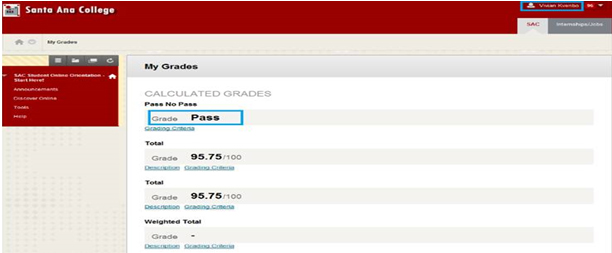
- After passing quizzes along the way, students will take a screenshot of their grade, "Pass". You can verify that your student has completed the online orientation by creating an assignment submittal for them to upload their image file for verification. This may be a good extra credit or course orientation exercise!